
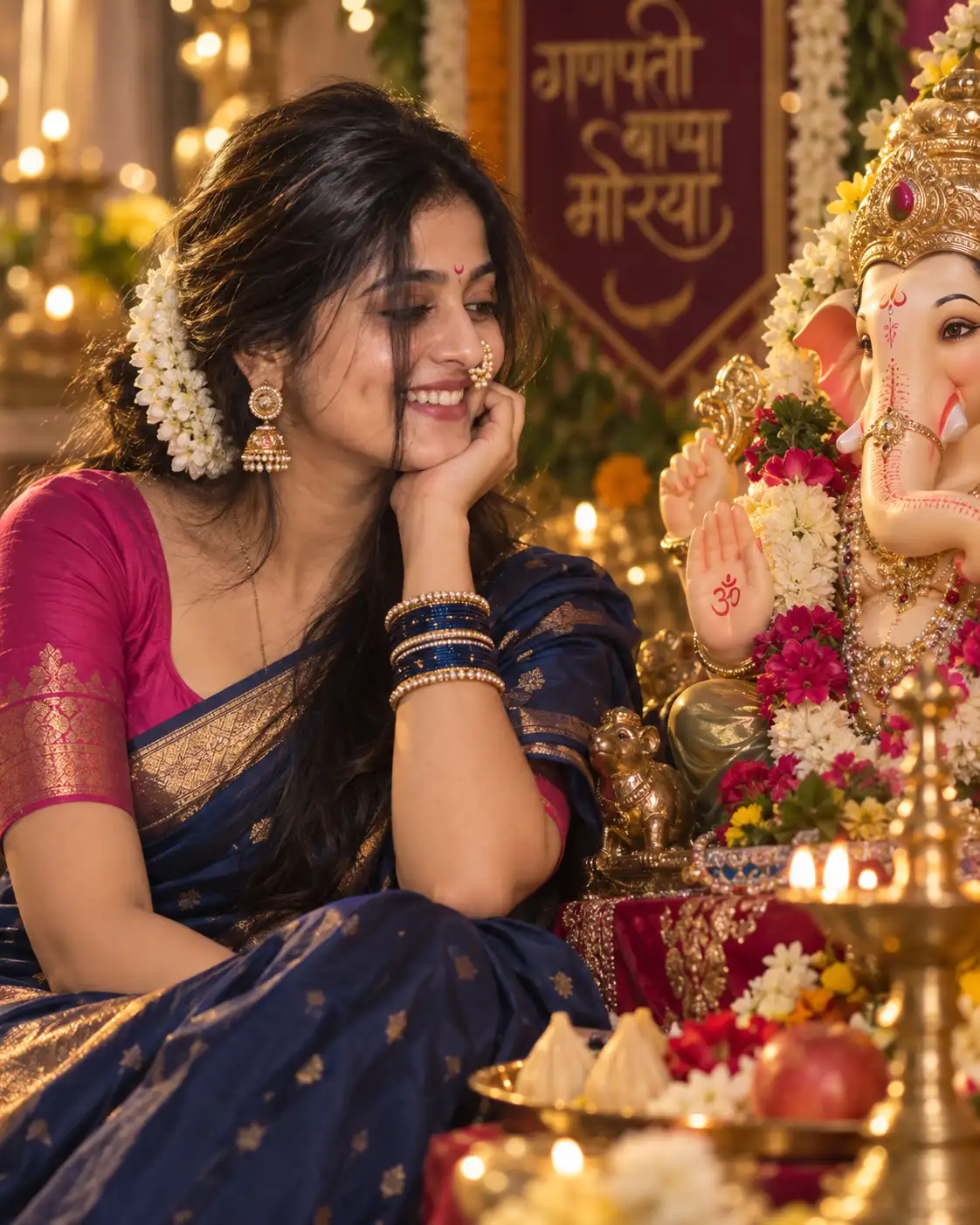
Ganesh Utsav Woman Portrait – 4:5
अगर आप अपनी reference photo का इस्तेमाल करके Lord Ganesha के साथ एक realistic और devotional portrait बनाना चाहते हैं, तो यह Ganesh Utsav AI Photo Prompt आपके लिए एक अच्छा creative starting point हो सकता है।
इस prompt में महिला को Lord Ganesha के पास traditional और elegant look में दिखाया गया है। इसमें navy-blue silk saree, dark pink blouse, Maharashtrian pearl nath, traditional jewelry, colorful bangles और pink crescent bindi जैसी details शामिल हैं।
Portrait को cinematic DSLR photography जैसा look देने के लिए इसमें golden rim light, soft front lighting, creamy bokeh, 85mm lens, f/1.8 aperture और HDR जैसी photography instructions भी दी गई हैं।
Ganesh Utsav AI Photo Prompt क्या है?
AI photo prompt एक detailed text instruction होता है, जिसे image-generation AI को यह समझाने के लिए इस्तेमाल किया जाता है कि final image कैसी दिखाई देनी चाहिए।
इस particular prompt को Ganesh Utsav portrait photography के लिए बनाया गया है। इसमें एक महिला को भगवान गणेश के पास शांत और भक्तिभाव वाले expression के साथ बैठा हुआ दिखाया जाता है।
Prompt में reference face को बनाए रखने, traditional Maharashtrian styling, saree, jewelry, lighting, camera settings और 4:5 composition जैसी details अलग-अलग तरीके से define की गई हैं।
इस Ganesh Utsav Prompt में क्या-क्या खास है?
- Reference Face: Uploaded woman’s face को primary reference के रूप में इस्तेमाल करने की instruction।
- Ganesh Utsav Setting: महिला को Lord Ganesha के पास devotional festive environment में रखा गया है।
- Navy-Blue Silk Saree: Elegant traditional saree styling के साथ realistic silk texture।
- Dark Pink Blouse: Saree के साथ matching traditional blouse।
- Maharashtrian Jewelry: Pearl nath और traditional jewelry details।
- Colorful Bangles: Traditional festive appearance को enhance करने के लिए।
- Pink Crescent Bindi: Forehead पर distinctive traditional detail।
- Golden Rim Light: Subject और background के बीच cinematic separation के लिए।
- Creamy Bokeh: Background को soft और visually pleasing रखने के लिए।
- 85mm + f/1.8: Professional portrait photography जैसा depth-of-field effect बनाने के लिए।
- 4:5 Aspect Ratio: Portrait-oriented social media images के लिए suitable vertical composition।
Reference Photo के साथ Ganesh Utsav AI Prompt कैसे Use करें?
Step 1: सही Reference Image चुनें
सबसे पहले अपने phone या computer से वह photo चुनें जिसे आप reference image के रूप में इस्तेमाल करना चाहते हैं।
कोशिश करें कि face clearly visible हो और image में बहुत ज्यादा filters, shadows या motion blur न हो। Reference image जितनी clear होगी, AI के लिए facial details को interpret करना उतना आसान हो सकता है।
Step 2: Copy Prompt Button पर Click करें
ऊपर दिए गए prompt card में मौजूद Copy Prompt button पर click करें। इससे पूरा prompt automatically copy हो जाएगा।
शुरुआत में prompt को छोटा करने की जरूरत नहीं है। इसमें identity, outfit, jewelry, pose, lighting, camera और negative prompt सभी important instructions शामिल हैं।
ChatGPT में Ganesh Utsav AI Photo कैसे बनाएं?
इस prompt को आप ChatGPT में भी इस्तेमाल कर सकते हैं।
OpenAI के official documentation के अनुसार ChatGPT Images में नई images create करने के साथ existing image upload करके उसे edit करने के लिए instructions दिए जा सकते हैं। ChatGPT में desired aspect ratio भी prompt में बताया जा सकता है या उपलब्ध aspect-ratio picker से चुना जा सकता है।
🤖 ChatGPT में इस्तेमाल करने का तरीका
- सबसे पहले ChatGPT खोलें।
- अपनी reference photo upload करें।
- इस page पर दिए गए Copy Prompt button से पूरा prompt copy करें।
- Copied prompt को ChatGPT में paste करें।
- Image generate करने के लिए request submit करें।
- Result आने के बाद जरूरत के अनुसार छोटे changes बताएं।
अगर ChatGPT में Face सही नहीं आ रहा हो तो?
अगर generated image में face reference image से पर्याप्त similar नहीं लग रहा है, तो पूरा prompt बदलने के बजाय एक short refinement instruction दें।
Keep the woman’s facial identity and natural facial features closely consistent with the uploaded reference image. Do not alter her face shape, eyes, nose, lips or overall facial proportions. Keep the expression natural and realistic.
Gemini में Ganesh Utsav AI Photo कैसे बनाएं?
यही prompt आप Google Gemini में भी try कर सकते हैं।
Google के official help documentation के अनुसार Gemini Apps में image generate करने के साथ existing image upload करके उसे edit करने और uploaded images के आधार पर नई image बनाने की सुविधा उपलब्ध है।
✨ Gemini में इस्तेमाल करने का तरीका
- Google Gemini खोलें।
- अपनी reference image upload करें।
- इस page से पूरा Ganesh Utsav prompt copy करें।
- Prompt को Gemini में paste करें।
- Image generation request submit करें।
- Generated image को देखें और जरूरत होने पर refinement instructions दें।
Gemini में generated image को आगे refine करने के लिए उसी conversation में additional instructions दिए जा सकते हैं। उदाहरण के लिए saree, jewelry, lighting या background में specific changes मांगे जा सकते हैं।
Woman और Lord Ganesha की Composition कैसे बेहतर करें?
इस prompt में woman और Lord Ganesha दोनों को composition में visible रखने की कोशिश की गई है। अगर generated image में Ganesha बहुत छोटा दिखाई दे रहा है, तो आप composition को थोड़ा adjust कर सकते हैं।
Keep both the woman and Lord Ganesha clearly visible in a balanced portrait composition. Maintain a natural visual relationship between the subject and the Ganesha idol. Keep the woman as the primary portrait subject while preserving Lord Ganesha as an important devotional element in the scene.
Traditional Maharashtrian Look को Natural कैसे रखें?
इस prompt में pearl nath, jewelry और colorful bangles important visual elements हैं। लेकिन jewelry बहुत oversized होने पर image artificial लग सकती है।
अगर ऐसा हो तो refinement prompt में यह instruction इस्तेमाल करें:
Navy-Blue Silk Saree को Realistic कैसे बनाएं?
Saree को realistic दिखाने के लिए fabric texture, folds और natural draping महत्वपूर्ण हैं। अगर AI-generated saree बहुत artificial दिखाई दे रही है, तो आप यह refinement instruction दे सकते हैं:
Cinematic Golden Rim Light कैसे Maintain करें?
Golden rim light इस portrait के cinematic appearance का important हिस्सा है। इसका उद्देश्य subject के किनारों पर warm highlight देना है, जबकि face पर soft front light बनी रहे।
अगर image बहुत dark या overly dramatic हो जाए, तो lighting को softer करने के लिए यह instruction दे सकते हैं:
85mm और f/1.8 का क्या मतलब है?
Prompt में 85mm portrait-lens look और f/1.8 shallow depth of field के लिए दिया गया है।
इसका उद्देश्य subject को background से visually अलग करना और creamy bokeh जैसा photographic appearance create करना है।
हालांकि AI image generators camera settings को वास्तविक camera की तरह mechanically apply नहीं करते। ये instructions मुख्य रूप से desired visual appearance समझाने के लिए उपयोगी हैं।
4:5 Aspect Ratio क्यों इस्तेमाल करें?
इस prompt में 4:5 vertical composition रखा गया है। यह portrait photography और कई social-media layouts के लिए practical format है।
अगर AI tool में aspect-ratio selection उपलब्ध है, तो 4:5 चुन सकते हैं। ChatGPT Images में aspect ratio picker उपलब्ध है और prompt के अंदर desired ratio भी specify किया जा सकता है।
अगर पहली Image Perfect न आए तो क्या करें?
पहली generation में exact result न आना सामान्य है। आपको हर बार पूरा prompt बदलने की जरूरत नहीं है।
बेहतर तरीका है कि एक समय में केवल एक या दो elements को refine करें।
- Face: Keep the facial identity more consistent with the reference.
- Saree: Make the silk texture more realistic.
- Jewelry: Make the Maharashtrian jewelry more natural and proportional.
- Lighting: Reduce the intensity of the golden rim light.
- Bokeh: Make the background softer and more natural.
- Expression: Make the smile subtle and peaceful.
- Composition: Keep both the woman and Lord Ganesha clearly visible.
Realistic Ganesh Utsav AI Portrait के लिए 8 Tips
- Clear और अच्छी quality वाली reference image इस्तेमाल करें।
- Face पर excessive filters वाली photo से शुरुआत न करें।
- पूरा prompt पहली बार बिना बदलाव के try करें।
- Face और identity instructions को unnecessarily remove न करें।
- Saree और jewelry के लिए realistic texture instructions बनाए रखें।
- Golden rim light को subtle रखें ताकि skin natural दिखाई दे।
- पहली image के बाद छोटे refinement prompts इस्तेमाल करें।
- किसी दूसरे व्यक्ति की photo इस्तेमाल करते समय उचित permission और privacy का ध्यान रखें।
HindiMePro पर और AI Photo Prompts देखें
अगर आपको traditional, cinematic और creative AI photo prompts पसंद हैं, तो HindiMePro पर ये related guides भी पढ़ें:
Frequently Asked Questions (FAQ)
क्या यह Ganesh Utsav AI Photo Prompt ChatGPT में काम करेगा?
हाँ। आप reference image upload करके prompt को ChatGPT Images में इस्तेमाल कर सकते हैं। ChatGPT existing images को edit करने और detailed image-generation instructions follow करने की सुविधा देता है।
क्या यह prompt Gemini में भी इस्तेमाल किया जा सकता है?
हाँ। Gemini Apps में image upload करके उसे edit करने या uploaded images के आधार पर नई image generate करने की सुविधा उपलब्ध है।
क्या इसमें अपनी photo का face reference के रूप में इस्तेमाल कर सकते हैं?
हाँ, आप अपनी reference image upload करके prompt में दिए गए identity-preservation instructions के साथ image generate करने की कोशिश कर सकते हैं। Exact facial consistency की guarantee किसी भी AI generation में नहीं होती।
इस prompt में 4:5 क्यों दिया गया है?
4:5 एक vertical portrait composition है, जो इस तरह के subject-focused portrait के लिए suitable है। Final aspect-ratio options इस्तेमाल किए जा रहे AI tool पर depend कर सकते हैं।
अगर Ganesha idol सही नहीं बन रहा हो तो क्या करें?
आप refinement prompt में Ganesha idol को traditional, realistic और proportionate रखने के लिए स्पष्ट instructions दे सकते हैं। एक साथ बहुत सारे changes करने के बजाय पहले idol या composition को अलग से refine करना बेहतर हो सकता है।
क्या saree का color बदला जा सकता है?
हाँ। आप navy-blue की जगह अपनी पसंद का रंग लिख सकते हैं और बाकी composition, pose, jewelry और lighting को unchanged रखने के लिए कह सकते हैं।
🙏 अपना Ganesh Utsav AI Portrait बनाकर देखें
अपनी clear reference photo तैयार करें, ऊपर दिया गया prompt copy करें और इसे ChatGPT या Gemini में try करें। पहली image के बाद छोटे refinement instructions देकर saree, jewelry, lighting, expression और background को अपने पसंद के अनुसार adjust कर सकते हैं।